How to Enable or Disable Save Passwords in Microsoft Edge on Windows 11

This tutorial shows you how to turn on or off the “Ask to save passwords” feature in Microsoft Edge. You can do this for just your account or for all users on Windows 11.
Why This Matters
Microsoft Edge is a web browser designed for Windows. It has built-in password management. When you enter a password on a website, Edge can ask if you want to save it. This makes logging in faster next time. If you sign in with your Microsoft account, your saved passwords sync across all your devices.
You might want to turn this feature off for security reasons. Or you might want to turn it on to make browsing easier. The choice is yours.
What Happens When You Enable Password Saving
When “Ask to save passwords” is turned on, Edge will prompt you each time you enter a new password. You can choose to save it or skip it. The next time you visit that site, Edge fills in your username and password automatically.
What Happens When You Disable Password Saving
When “Ask to save passwords” is turned off, Edge no longer asks if you want to save passwords. You can still manually add passwords if you want. Any passwords you already saved will still work.
Option One: Turn Password Saving On or Off for Your Account
- Open Microsoft Edge.
- Click the three dots menu icon in the top right corner. Select Settings.
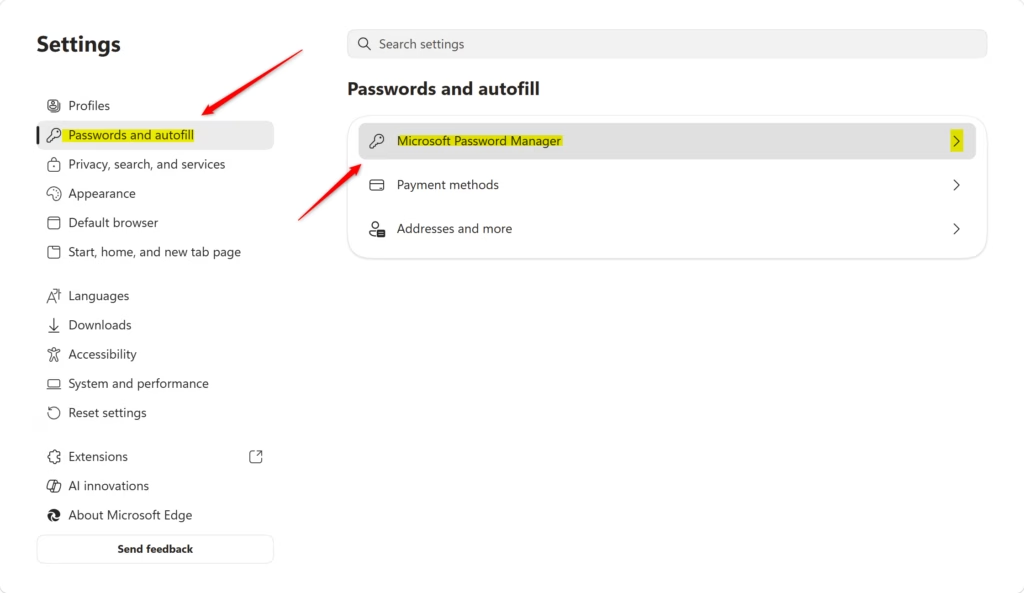
- On the left side, click Passwords and passkeys-in-microsoft-edge-on-windows-11/" class="sal-link" rel="noopener" target="_blank" data-sal-id="12930">autofill. Then click Microsoft Password Manager on the right side.
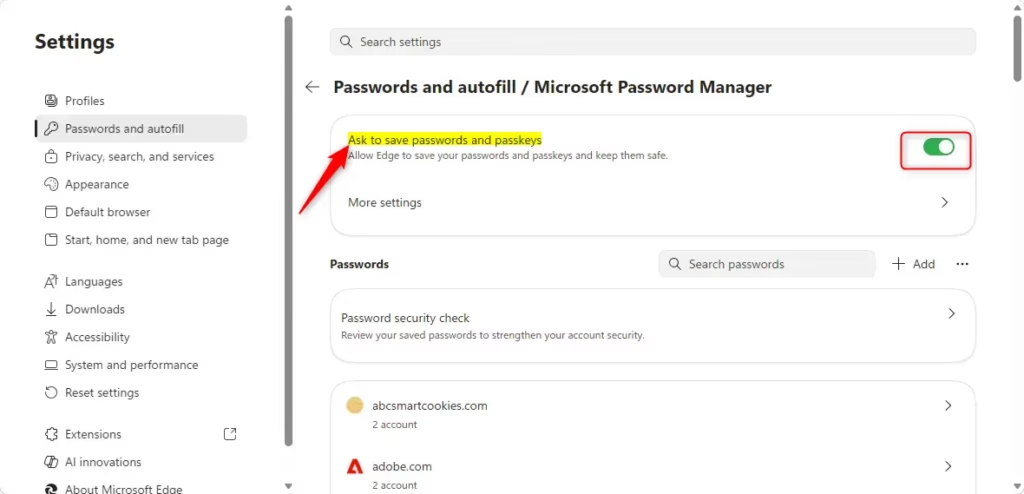
- Find the option that says Ask to save passwords and passkeys. Toggle it On or Off based on what you want.
- Close the Settings tab when finished.
Option Two: Enable or Disable Password Saving for All Users on the Computer
⚠️ Admin Privileges Required — You must be logged in as an administrator to use this method.
This option uses a Windows policy called PasswordManagerEnabled.
To Always Allow Password Saving
- Right-click the Windows Terminal app and select Run as administrator.
- Run this command to always enable password saving for all users:
reg add "HKEY_LOCAL_MACHINE\SOFTWARE\Policies\Microsoft\Edge" /v PasswordManagerEnabled /t REG_DWORD /d 1 /fThis turns on “Ask to save passwords” for everyone. Users cannot turn it off in Option One.
To Always Disable Password Saving
- Right-click the Windows Terminal app and select Run as administrator.
- Run this command to disable password saving for all users:
reg add "HKEY_LOCAL_MACHINE\SOFTWARE\Policies\Microsoft\Edge" /v "PasswordManagerEnabled" /t REG_DWORD /d 0 /fThis turns off “Ask to save passwords” for everyone.
To Reset to Default Settings
- Right-click the Windows Terminal app and select Run as administrator.
- Run this command to return to default settings:
reg delete "HKEY_LOCAL_MACHINE\SOFTWARE\Policies\Microsoft\Edge" /v "PasswordManagerEnabled" /fThis removes the policy. Users can now turn password saving on or off as they wish in Option One.
Additional Resources
View or edit your passwords in Microsoft Password Manager – Microsoft Support
Learn how to view or edit passwords you have already saved in Microsoft Edge.
Summary
Microsoft Edge offers two ways to manage password saving:
- Option One lets you turn password saving on or off for just your account. This is the easiest method for most users.
- Option Two lets administrators control password saving for all users on the computer. This requires admin access and uses Windows Terminal.
When password saving is on, Edge asks if you want to save passwords as you browse. When it is off, Edge stops asking. Either way, passwords you already saved continue to work. Choose the setting that works best for your security and convenience needs.
Why shouldn't you save passwords in the browser?
Saving passwords in a browser can pose security risks if your device is stolen or accessed by unauthorized users. If your computer is not password-protected, anyone can view your stored credentials. Additionally, malware or malicious browser extensions could potentially extract saved passwords, making dedicated password managers a more secure alternative.
How to save Edge passwords to a file?
To export your Edge passwords, go to Settings, select Profiles, and click on Passwords. Click the three-dot menu icon next to Saved Passwords and choose Export passwords. Confirm your choice to download a CSV file containing your credentials. Ensure you store this file securely, as it contains sensitive, unencrypted login information.
How to get Microsoft Edge to autofill passwords?
To enable autofill, open Edge settings, navigate to Profiles, and select Passwords. Toggle on the 'Offer to save passwords' and 'Sign in automatically' options. Once enabled, Edge will prompt you to save credentials when you log in. On subsequent visits, the browser will automatically fill in your username and password fields.
Is it safe to save passwords on Edge?
Saving passwords in Microsoft Edge is generally safe for personal use, provided you use a strong Windows login password and keep your device secure. Edge encrypts stored data, offering convenience for daily browsing. However, for maximum security, consider using a dedicated third-party password manager that offers advanced encryption and multi-device synchronization features.
Was this guide helpful?





Leave a Reply Cancel reply